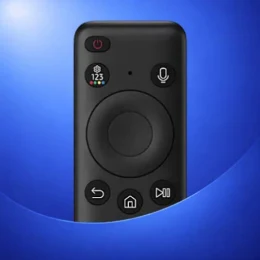
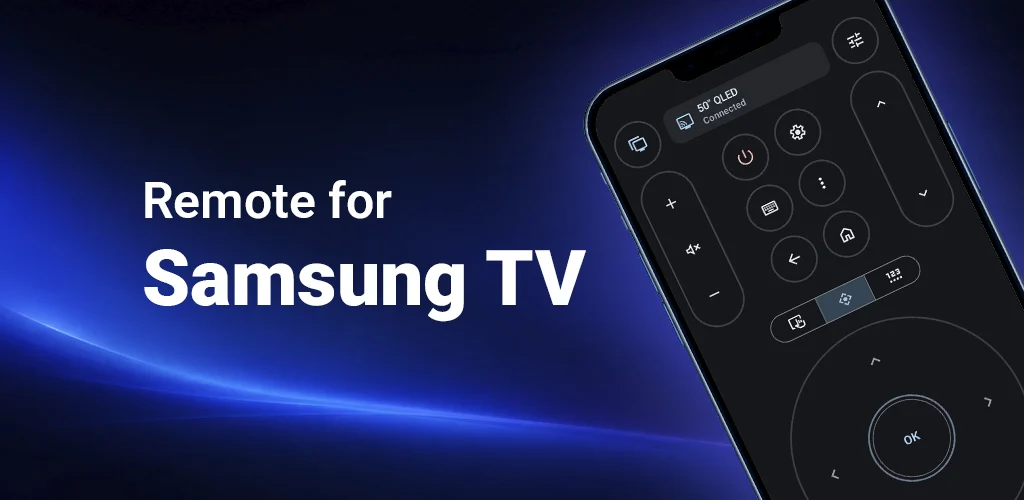
Remote for Samsung TV helps you control your Samsung Smart TV from your Android phone. Connect your phone and TV to the same Wi-Fi network, choose your TV in the app, and use your phone as a practical remote for everyday viewing.
It is especially useful when your original Samsung TV remote is lost, broken, out of batteries, or simply not nearby. You can control volume, channels, input source, navigation, playback, TV apps, text input, and screen mirroring from one place.
Features
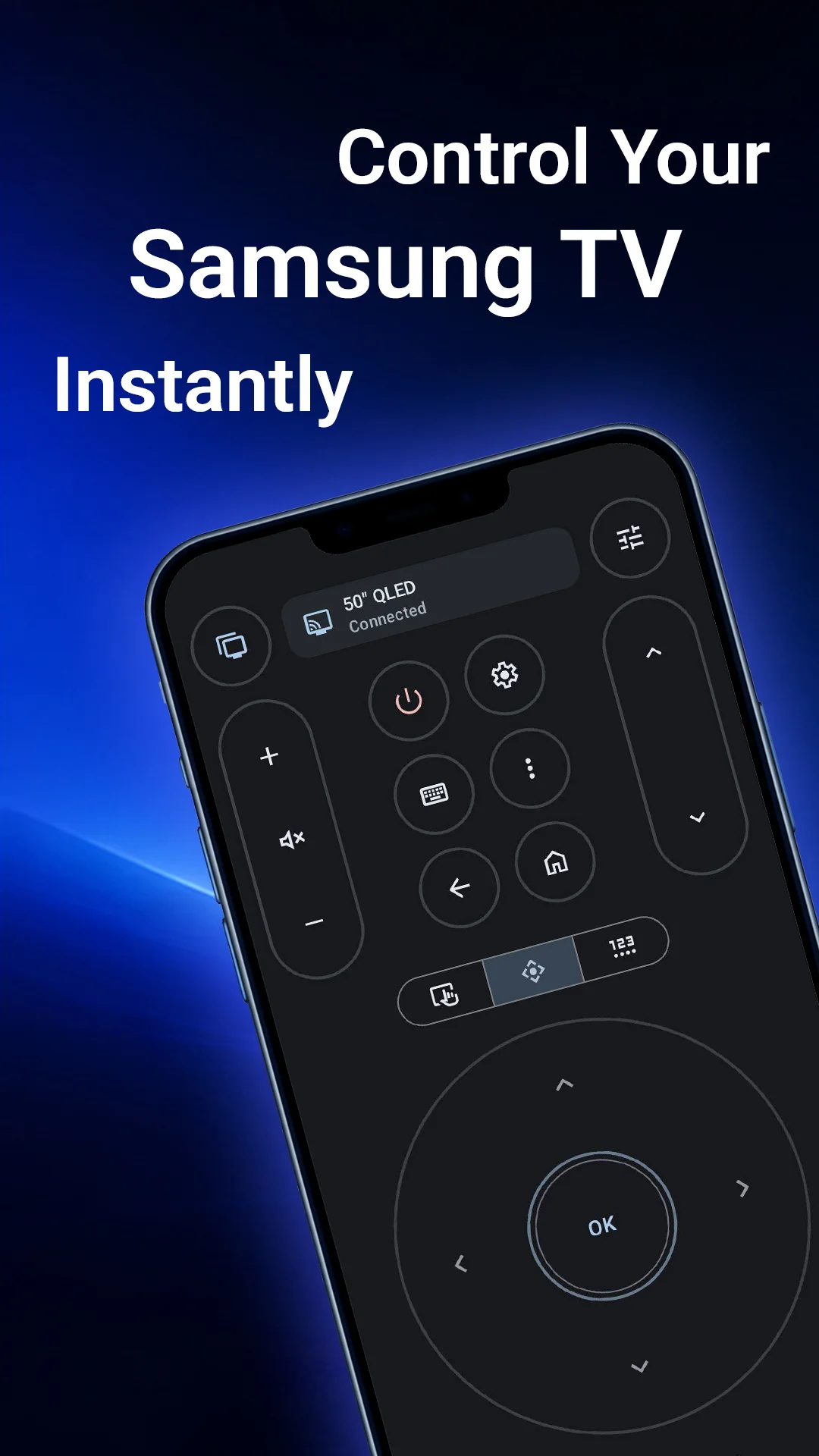
- Samsung TV remote control: Use volume, channels, mute, source, home, back, menu, navigation, and playback controls.
- Wi-Fi control: Control a Samsung Smart TV from your phone without extra hardware when both devices are on the same network.
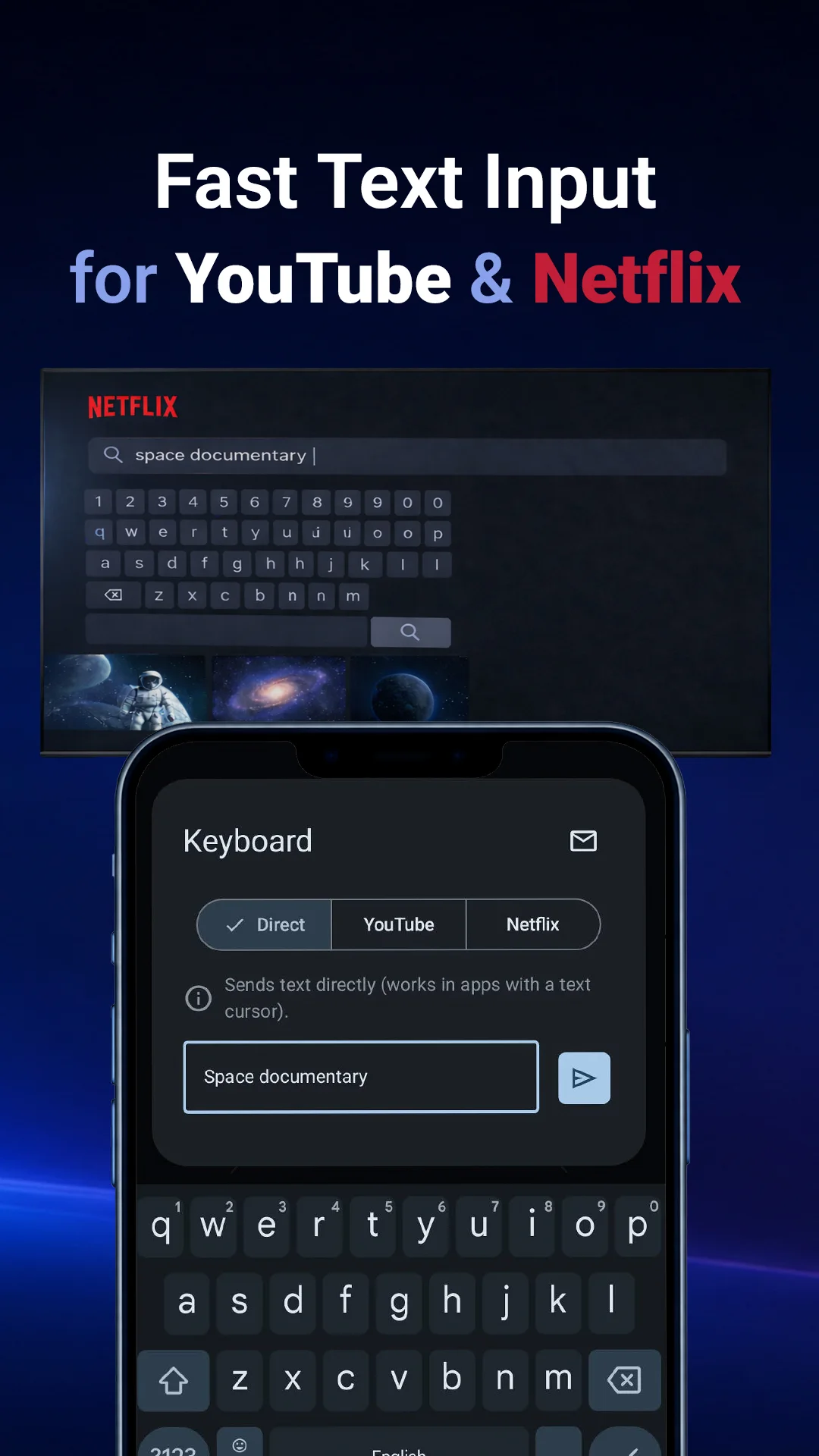
- Fast phone keyboard: Type faster in YouTube, Netflix, TV search, browser, and other supported TV apps.
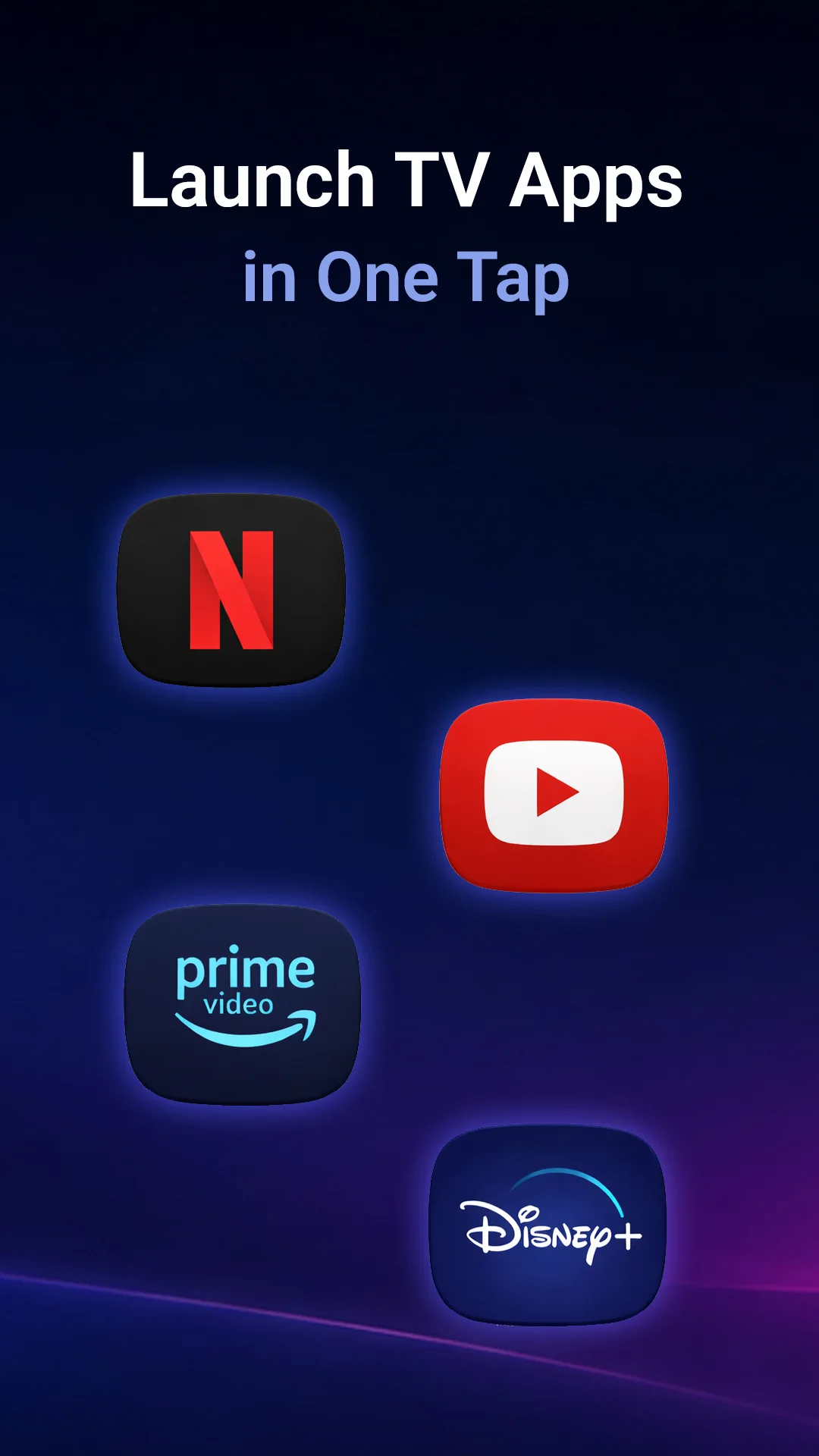
- TV app launcher: Open favorite TV apps such as YouTube, Netflix, Prime Video, and more.
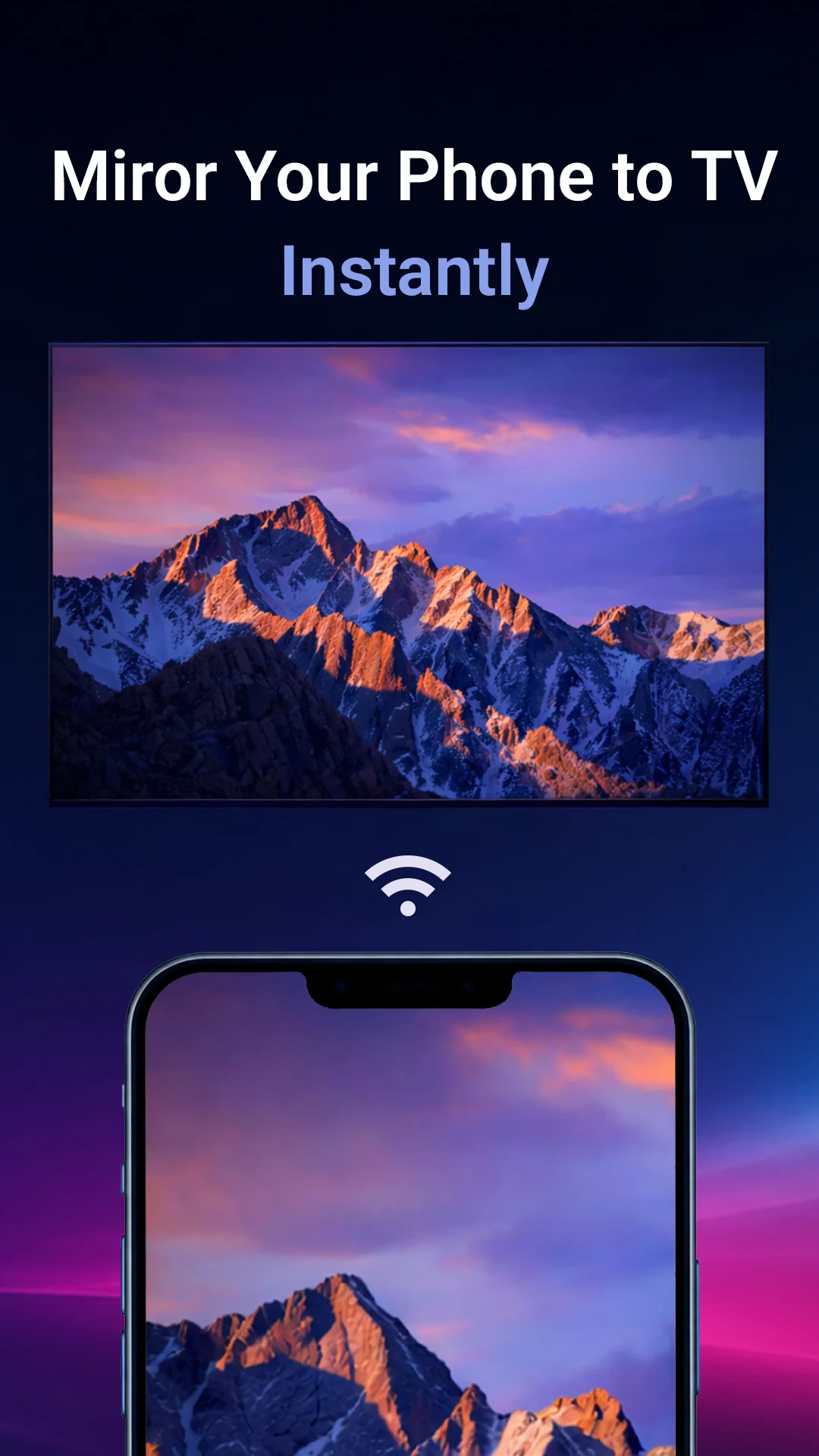
- Screen mirroring: Mirror your phone to your Samsung TV for videos, photos, apps, and presentations.
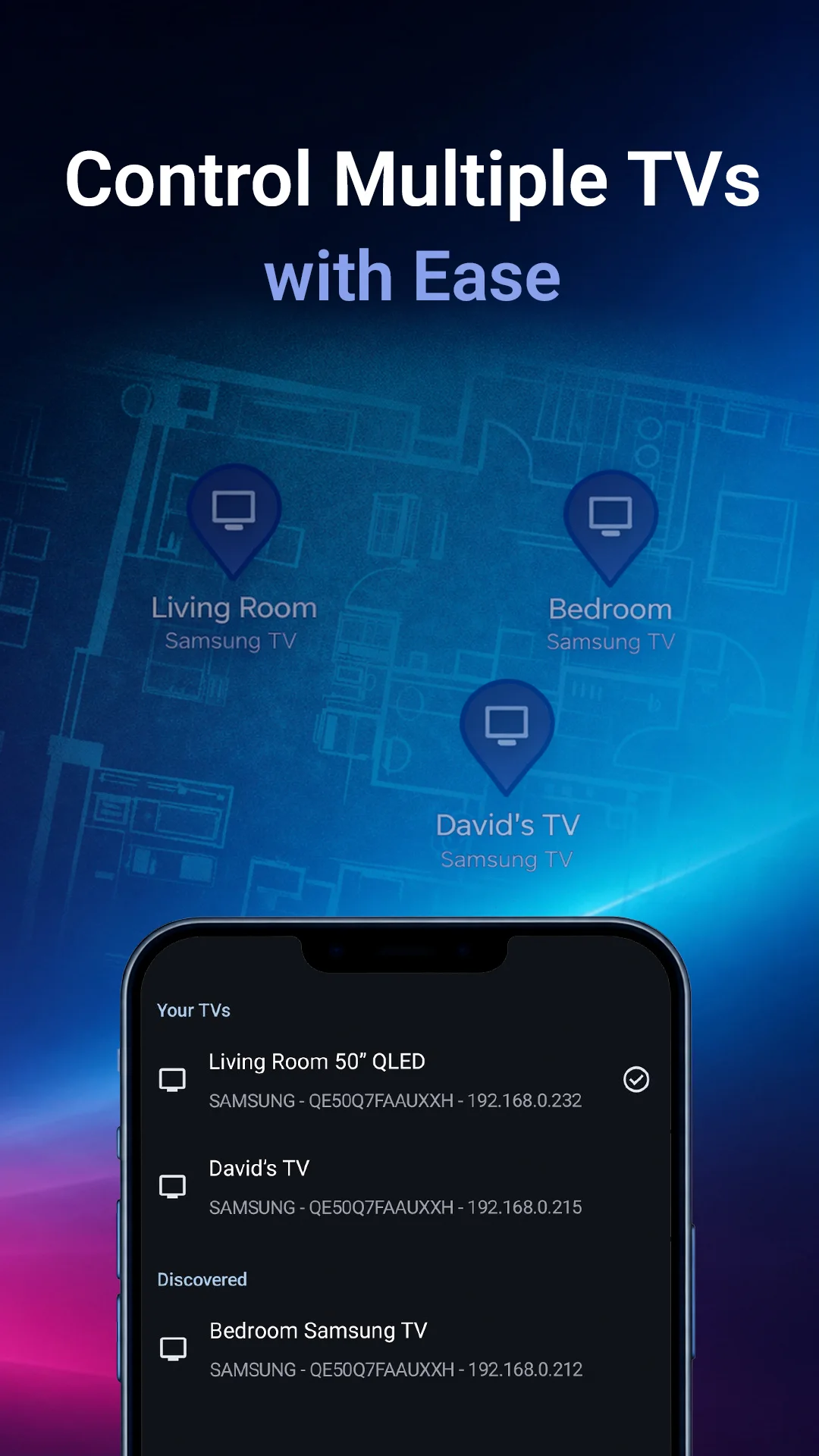
- Multiple TVs: Connect and switch between several Samsung TVs with ease.
App in action
Fast YouTube text input
Type a YouTube search query on your phone and send it to the TV.
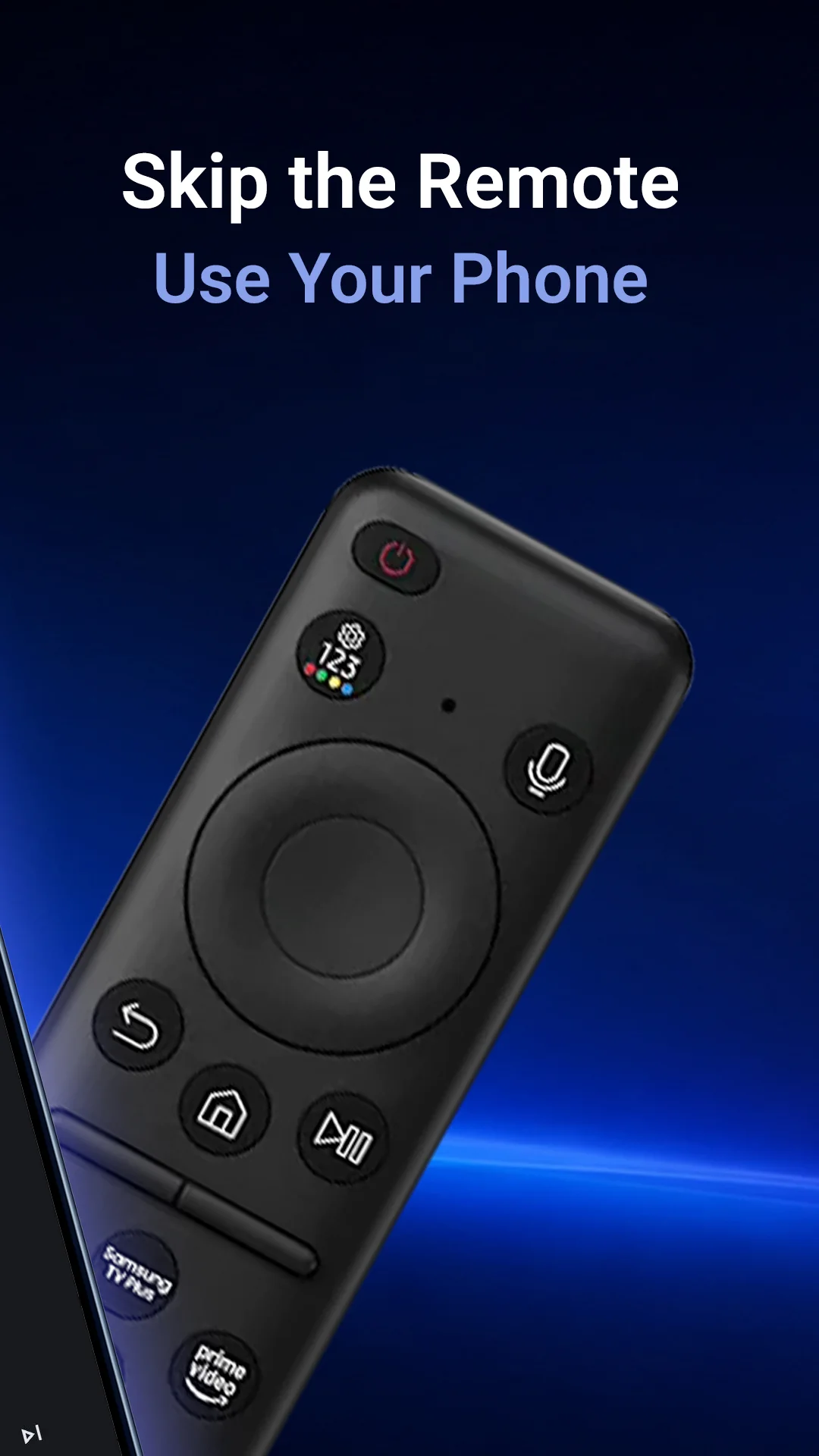
Lost your Samsung TV remote?
Use your Android phone as a convenient Wi-Fi remote when the physical remote is missing.
How it works
- Connect to Wi-Fi: Put your Android phone and Samsung TV on the same Wi-Fi network.
- Open the app: Start Remote for Samsung TV and let it find nearby TVs.
- Select your TV: Choose your Samsung Smart TV from the list.
- Confirm access: Approve the connection on the TV if requested.
- Start controlling: Use the remote, app launcher, keyboard, and mirroring features.
No remote to confirm?
Your TV requires confirmation on its screen for the first connection. If you do not have the remote, try one of these options.
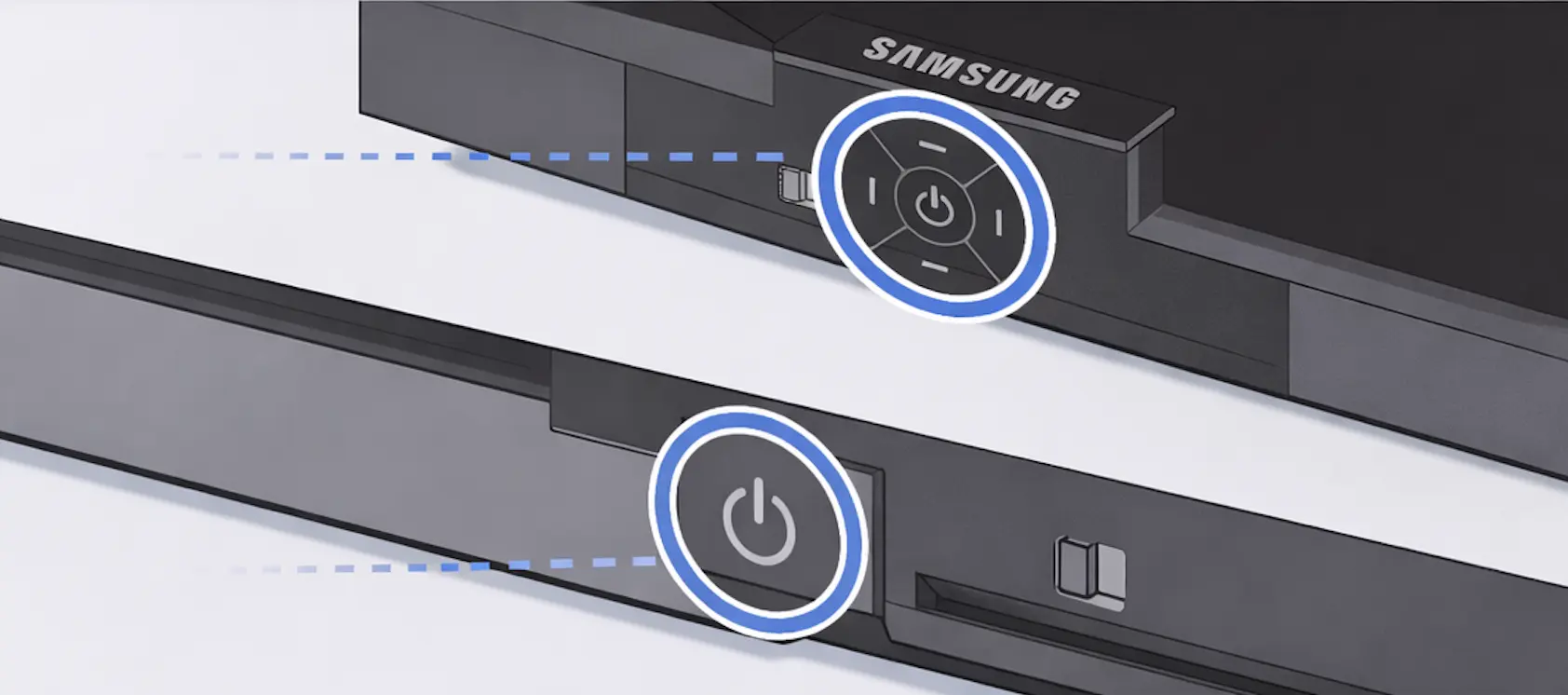
Use the TV buttons
- Find the control button on your TV. It is usually located on the bottom center or bottom right side. Its position may vary depending on the model.
- Press the button to open the control menu, then use it to navigate and confirm the connection.
Connect a keyboard
Connect a USB or wireless keyboard to your TV and use it to confirm the request.
Important compatibility notes
Power control, keyboard input, app launch, screen mirroring, and other features may depend on your Samsung TV model, TV software version, and supported TV functions.
Frequently asked questions
How do I connect my phone to the TV?
To connect, make sure your phone and TV are on the same Wi-Fi network. Open the app, select your TV from the list, and confirm the request on the TV screen if prompted.
The app can't find my TV. What should I do?
Try these steps:
- Confirm both devices are on the same Wi-Fi network.
- Restart the TV by holding the power button on the physical remote for about 5 seconds.
- Fully close and reopen the app.
- Wait 1-2 minutes after turning the TV on. Discovery may take a moment.
If it still does not appear, restarting both the phone and the TV often helps.
My TV is detected but won't connect
If the TV is visible but connection fails:
- Turn the TV off and on again.
- Make sure you allowed the connection request on the TV screen.
- Check TV settings for external device control or device access.
Some TVs block new connections until permission is granted.
Why does the TV ask for permission every time?
This usually means the TV is configured to confirm every connection. On the TV, look for a setting similar to Settings -> General -> External Device Manager -> Device Connection Manager -> Access Notification.
Choose First time only or a similar option to allow automatic reconnection.
I didn't see the permission pop-up. What now?
The permission request appears on the TV screen, often in a corner, and may disappear quickly. Try reconnecting from the app, or restart the TV to trigger the request again.
Why can't I turn on the TV from my phone?
Remote power-on requires a TV setting to be enabled. On the TV, check for something like Settings -> General -> Network -> Expert Settings -> Power On with Mobile.
Once enabled, you can usually turn on the TV from your phone while on the same network.
How does the app control the TV?
The app communicates with your TV through your local Wi-Fi network. Most remote features work without the internet; both devices simply need to be connected to the same network.
Is it safe to use this app?
Yes. The app uses your local network connection to communicate with the TV. It does not need access to personal content.
Which TVs are supported?
The app supports Smart TVs that allow remote control over a local network. Available features may vary depending on the TV model and software version.
What if nothing works?
If you are still having trouble, please contact us from the app settings page. Including your TV model and a short description of what you tried helps us assist you faster.


Availability
Remote for Samsung TV is available on the Google Play Store for Android devices.
Disclaimer
This app is not an official Samsung application and is not affiliated with, endorsed by, or sponsored by Samsung Electronics. Samsung, YouTube, Netflix, and Prime Video are trademarks of their respective owners.
About MakeevApps
MakeevApps is an independent mobile app studio focused on practical, easy-to-use, and privacy-friendly Android apps.
Get the app on Google Play
Try Remote for Samsung TV and control your Samsung Smart TV from your Android phone.
View on Google Play