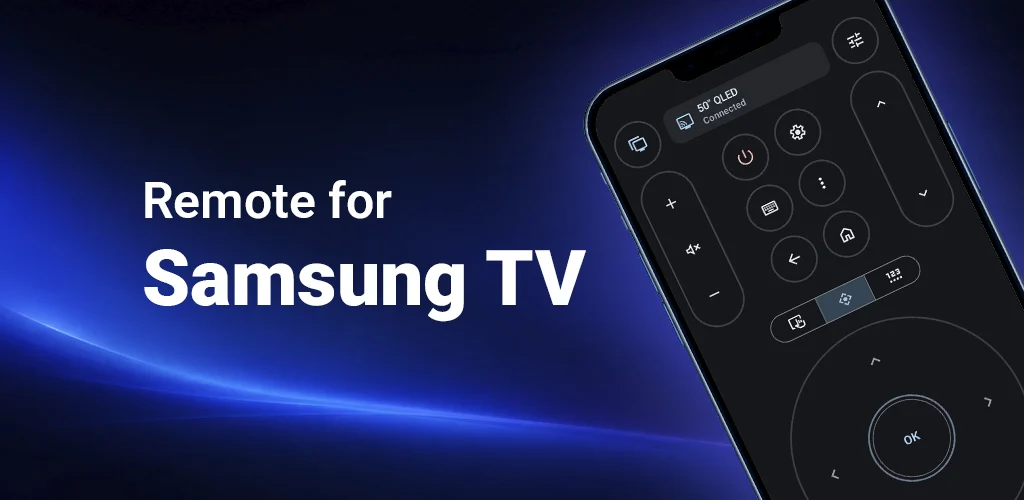
A lost TV remote usually disappears at the worst possible moment. It may be under a blanket, in another room, or out of batteries again. But if you have a Samsung Smart TV, you do not have to search for the physical remote before you can watch TV.
Remote for Samsung TV turns your Android phone into a practical replacement for the original remote. Your phone is usually already in your hand, has a full keyboard, and can control volume, channels, navigation, playback, TV apps, source, and text input over Wi-Fi.
Use Your Phone Instead of the Physical Remote
The idea is simple: connect your Android phone and Samsung TV to the same Wi-Fi network, open the app, choose your TV, and use the phone as your remote. Once connected, you do not need to keep the physical remote nearby for everyday control.
- Always nearby: your phone is easier to find than a small TV remote.
- No batteries to replace: charge your phone as usual instead of hunting for remote batteries.
- Faster text input: use your phone keyboard for search fields instead of moving letter by letter.
- More than one TV: connect and switch between multiple Samsung TVs from one app.
How to Set It Up
Setup is usually quick. Remote for Samsung TV searches for compatible Samsung Smart TVs on your local network and shows the TVs it can connect to. You only need to make sure your phone and TV can see each other on the same Wi-Fi. If the TV asks for confirmation the first time a phone connects, approve the request on the TV screen.
If the app cannot find the TV, temporarily turn off VPN on your phone and check that you are not using a guest Wi-Fi network. VPNs and isolated guest networks can block local device discovery, even when the internet itself works normally.

No Remote to Confirm?
The first connection may require confirmation on the TV screen. This is normal: the TV wants you to allow a new phone to control it. If the physical remote is missing, you can still confirm the request on many Samsung TVs without buying a replacement remote.
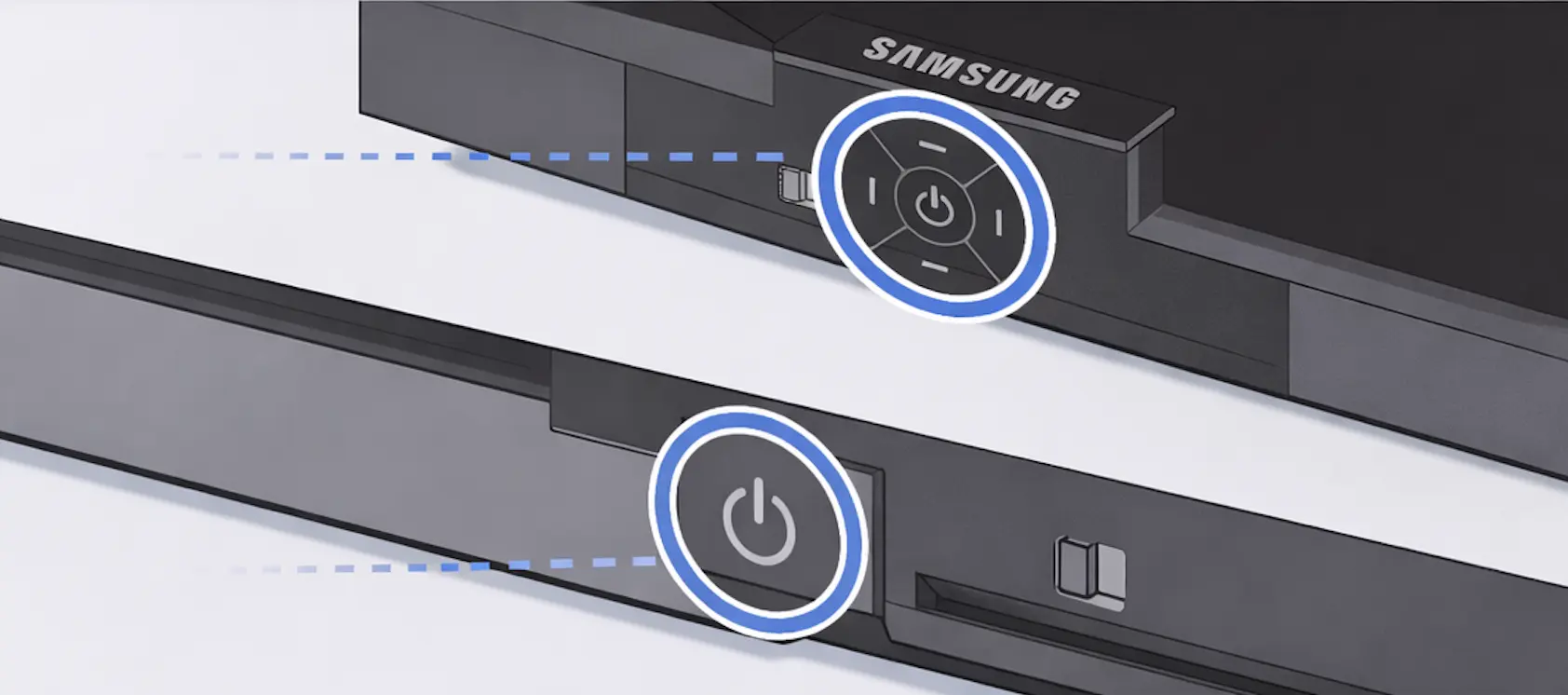
- Find the control button on your TV. It is often on the bottom center, bottom right, back, or lower edge of the TV. The exact position depends on the model.
- Open the TV control menu. Press the button to bring up the on-screen controls.
- Navigate to the confirmation prompt. Use the TV button to move through the options and approve the connection.
- Or connect a keyboard. A USB or wireless keyboard connected to the TV can also help confirm the first request.
Turning On the TV from Your Phone
If your TV does not turn on from the phone remote, check the TV setting for mobile power control. On Samsung TVs it is usually named something like Settings -> General -> Network -> Expert Settings -> Power On with Mobile. Once this is enabled, the app can turn on the TV while your phone and TV are on the same network.
Try Remote for Samsung TV
If your Samsung TV remote is lost, broken, out of batteries, or just not nearby, Remote for Samsung TV can turn your Android phone into a convenient Wi-Fi remote for daily viewing.