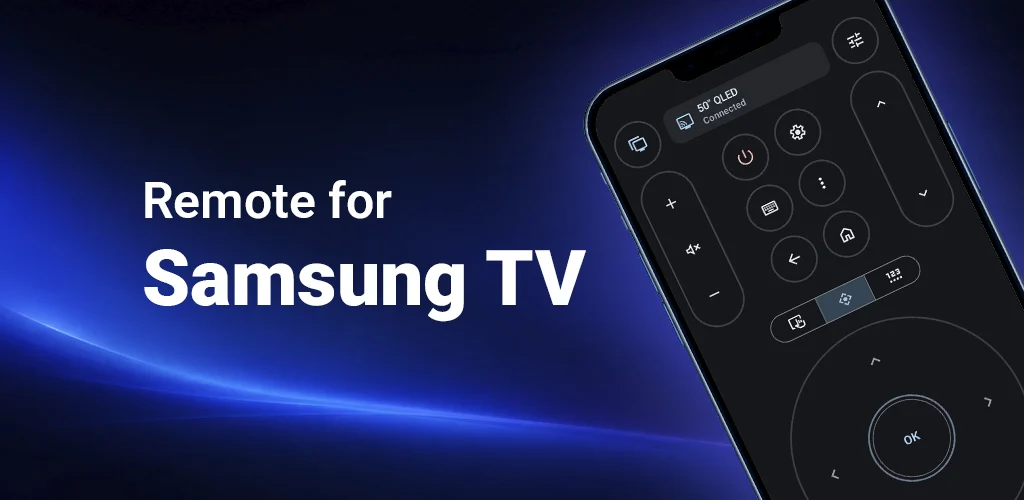
Typing on a TV with arrow buttons is one of those small problems that becomes annoying very quickly. Searching YouTube or Netflix, entering a movie title, or correcting one letter can take far longer than it should.
If you have an Android phone and a compatible Samsung Smart TV, Remote for Samsung TV gives you a faster option: use the keyboard on your phone and send text to the TV. It is especially useful for YouTube search, Netflix search, browser fields, and other places where the TV expects text input.
Why TV Typing Feels So Slow
Most TV keyboards are designed for a remote control, not for real typing. You move a cursor across letters, press OK, move again, press OK again, and repeat. That is fine for a short PIN, but it is painful for a long YouTube query, Netflix title, or search phrase.
A phone keyboard is faster because your thumbs already know the layout. You can type, delete, change language, and correct mistakes naturally, then send the text to the TV when the right field is focused.
Set Up the Phone Keyboard
First, make sure your Android phone is already connected to your Samsung TV in Remote for Samsung TV. If you need help with the first connection, see the setup notes in Lost Samsung TV remote: what to do.
- Open the keyboard tool. In the app, choose the keyboard or text input control.
- Select the target mode. Use the mode that matches what you are typing into, such as YouTube, Netflix, or direct text input.
- Choose the language if needed. Select the language that matches your phone keyboard and TV input.
- Type on your phone. Enter the text normally, then send it to the TV.
Choose the Right Input Mode
The keyboard tool has separate modes because TV apps handle text input differently. Pick the mode that matches what you see on the TV screen, then type on your phone and send the text.
Direct Input
Use Direct when the TV app already has a normal text cursor in a field. This mode sends text directly, so it is useful in apps and screens that accept keyboard input without a special TV keyboard layout.

YouTube Search
YouTube is a common place where phone typing saves time. Open YouTube on your TV, go to the search screen, and choose the YouTube mode in Remote for Samsung TV.

After that, type your query on the phone and send it. This is much faster than moving through every letter with the remote. It is also easier to edit because you can use the phone keyboard instead of backing through the TV keyboard one character at a time.
Netflix Search
Netflix search also benefits from phone typing, especially when you are entering a long movie title. Open Netflix search on the TV, choose the Netflix mode, and follow the instruction shown in the app.

If Text Does Not Appear on the TV
If the text does not show up, the most common reason is focus. The TV may not be inside the text field yet, or the TV keyboard may not be ready to receive input. Move the selection to the text field, open the on-screen keyboard, and try again.
- Check that the phone and TV are still on the same Wi-Fi network.
- Make sure the app shows the TV as connected.
- Put focus inside the TV text field before sending text.
- Try the matching mode, such as YouTube for YouTube search or Netflix for Netflix search.
- Switch language mode if the TV keyboard expects another input language.
A Faster Everyday Remote
Fast typing is only one part of the app. Remote for Samsung TV also gives you regular remote buttons, TV app launching, source control, playback controls, screen mirroring, and support for multiple TVs. It is a useful backup when the original remote is not nearby and a better typing tool when the TV keyboard slows you down.
Try Faster TV Typing
If you often search YouTube, Netflix, or TV apps from the couch, Remote for Samsung TV can make text input feel much more natural from your Android phone.