Start with these checks
- Turn the TV on with its physical remote or power button. Wait a minute or two for it to finish starting.
- Connect the phone and TV to the same local network. Use your main home network for the first test, rather than guest Wi-Fi.
- Temporarily pause your phone’s VPN on your trusted home network, then reopen the remote app.
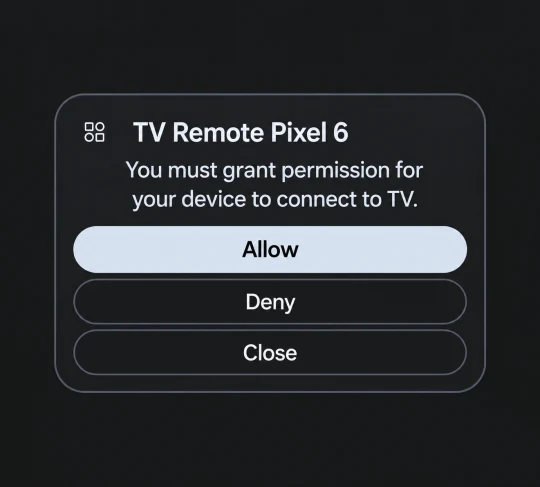
- Watch the TV screen when connecting. Approve the request for your phone or the app if it appears.
- Allow local network access if Android asks. This is separate from the approval on the TV.
This guide covers Remote for Samsung TV by MakeevApps for Android. It requires a compatible Samsung Smart TV on your local network; available controls depend on the TV model and software.
Set up the first connection
- Turn on the TV and check its network connection in the TV settings. Connect your Android phone to your home Wi-Fi.
- Open Remote for Samsung TV and start the TV search. If the app asks for local network access, allow it.
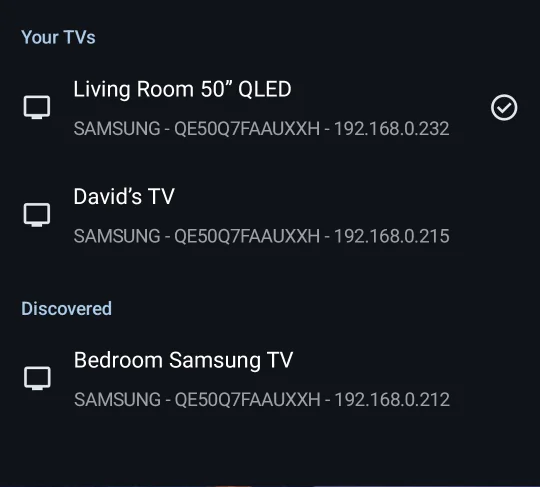
- Select your TV. If several appear, check the TV name or model before choosing.
- Keep the physical remote nearby and approve the connection request on the TV, if shown.
- Test a basic control, such as an arrow key on the TV’s Home screen, before trying keyboard input or other tools.
If you have no physical remote to approve access, see what to do when your Samsung TV remote is lost.
The TV does not appear in the device list
Keep the TV on, wait one or two minutes after startup, then tap Scan again. If it is still missing, check the following.
Check the local network, not just internet access
Internet access alone does not mean the phone can reach the TV. Check that both use the same local network. If the TV is offline, reconnect it using Samsung’s network status guide.
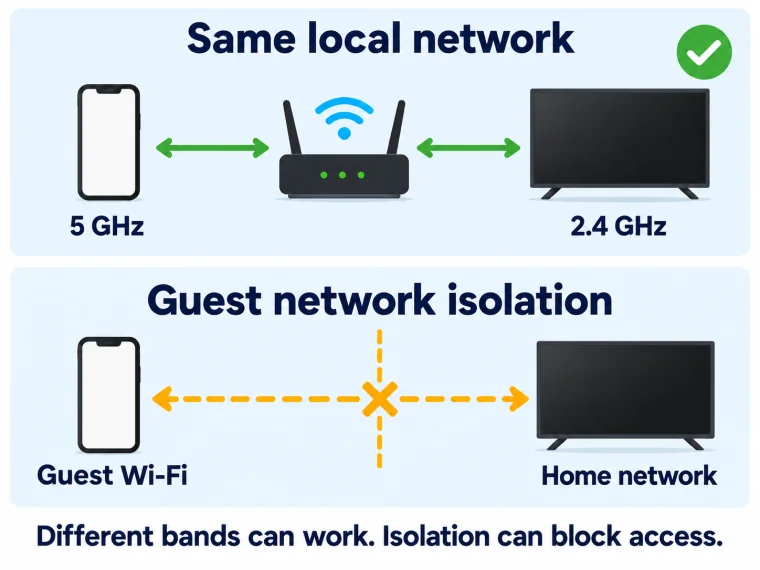
The devices do not have to use the same Wi-Fi band. A phone on 5 GHz can reach a TV on 2.4 GHz or Ethernet if the router connects them to the same local network and allows communication between them.
Guest Wi-Fi, device isolation, and VPN
Guest Wi-Fi, AP isolation, and client isolation can block communication between devices. Test on your main home network. With an extender, mesh system, or managed network, check whether local communication and device discovery are allowed. Google’s streaming-device setup guide explains the isolation setting.
A VPN can route or block local traffic depending on its configuration. Pause it briefly on your trusted home network and retry. If that helps, look for a local-network access option. Turn the VPN back on after the test.
If the TV is still missing, try the restart steps below.
The TV is listed, but the app cannot connect
Select the TV while watching its screen and approve any connection request. If the connection fails, use the error to choose the next check:
- “Authorization failed” or a denied request: check the TV’s device access list.
- “Connection timeout” or “Network unreachable”: confirm the TV is still on and reachable on the same network, then check VPN and isolation settings above.
- The same failure after approval: restart the app and TV, search again, and select the newly discovered TV.
If the failure persists, save the exact error for support.
The TV denied access to the phone or app
If you chose Deny, use the physical remote to open Device List in the TV settings. Select your phone or app, change its permission to Allow, then reconnect. See Samsung’s connection troubleshooting guidance.
Possible menu paths include:
- Settings → All Settings → Connections → Device Connection Manager → Device List
- Settings → All Settings → Connection / Connections → External Device Manager → Device Connection Manager → Device List
- Settings → General → External Device Manager → Device Connection Manager → Device List
Menu names vary by model and firmware; some TVs use Device Connect Manager. Check your TV’s e-Manual if needed. References include Samsung’s QN90F manuals, QN90C manuals, and 2018 QLED connection guide.


The permission request is missing or keeps returning
Open Device Connection Manager → Access Notification to check when the TV shows connection requests.

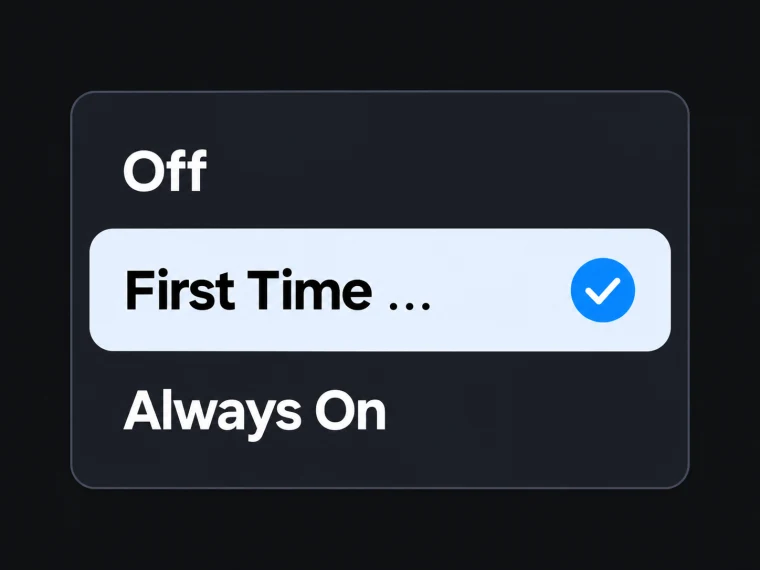
The available modes depend on your TV:
- Off: hides connection notifications.
- First Time Only: shows a notification on the device’s first connection.
- Always On: shows a notification each time a device attempts to connect.
For repeated requests from your trusted phone, choose First Time Only, if available. If no request appears and the app cannot connect, check Device List for an earlier denial. Changing notifications does not remove that denial.
Which Android permissions matter?
On Android 17 and later, Remote for Samsung TV requests local network access. Allow it when prompted. Earlier Android versions do not show this request.
If you denied access, open Settings → Apps → Remote for Samsung TV → Permissions and check the local-network or nearby-devices permission, if listed. Labels vary by phone and Android version. Return to the app and scan again.
Basic network control does not require Bluetooth pairing or location permission. Android permission and TV approval are separate; both may be needed.
It used to connect, but now it does not
Check what changed: the router or Wi-Fi name, guest Wi-Fi, a VPN, an app reinstall, or TV settings. Search again after a network change. Check TV approval after reinstalling the app or changing phones.
If the connection still fails after these checks
After completing the checks above and fixing any problems found, try these steps if the connection still fails. Test after each step and stop when it works.
- Close and reopen the remote app, then scan again.
- Restart your phone, reconnect to your home Wi-Fi, and retry.
- Restart the TV using one method: with the TV on, hold the physical remote’s Power button until it restarts, if supported; alternatively, unplug it for 30 seconds, reconnect power, and turn it on. A quick Power press may only put it into standby. Follow your model’s instructions and never interrupt a software update.
Consider restarting the router only if other devices also have network problems, and choose a time when it will not interrupt anyone’s connection.
See Samsung’s cold-boot instructions. If the problem continues, check for app and TV software updates.
The app works when the TV is on, but cannot turn it on
A TV disconnected from mains power cannot receive a wake-up request. In standby, network access depends on the TV model, settings, and connection.
Look for Power On with Mobile under Network → Expert Settings. Network may be under Connections or General. Samsung’s SmartThings power-on guide shows this TV setting; its app setup steps are for SmartThings.
Connect with the TV on, then test waking it from standby on the same home network. Wake-up is available only on compatible TVs and connections. If turning the TV on manually restores control, report a wake-up problem to support.
Connected, but some controls do not work
Test the arrow keys on the TV’s Home screen. If they work, troubleshoot the specific control:
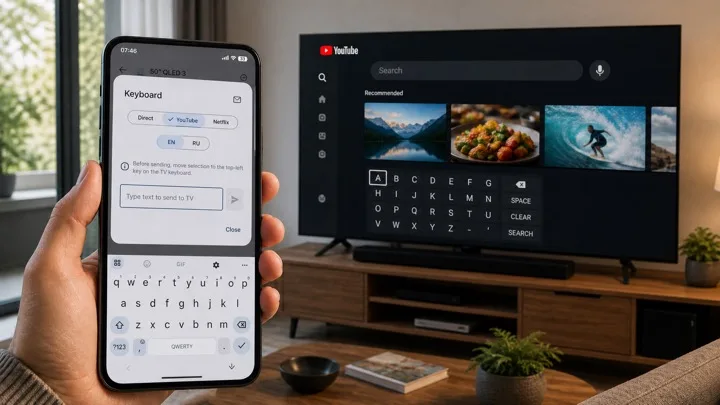
- Keyboard input: focus the TV’s text field and select the matching input mode in the app. See typing on Samsung TV with your phone.
- A shortcut or button: note the TV app or input in use and test the same action with the physical remote.
- Screen mirroring: both the phone and TV must support it. A working remote connection does not confirm mirroring compatibility.
When contacting support, be specific: “Arrows work on Home, but typing in YouTube search does not.”
What to send support
Use Contact Us in the app’s settings. Include:
- The full TV model code and TV software version.
- Whether the TV is missing, found but unable to connect, unable to wake, or connected with one feature failing.
- The exact error, whether a TV approval appeared, and what you selected.
- Whether the TV uses Wi-Fi or Ethernet, whether either device uses guest Wi-Fi, and whether a VPN, extender, or mesh system is involved.
- When it last worked, any recent changes, and which checks above you tried.
Attach a screenshot if useful, hiding account details and Wi-Fi passwords.
Frequently asked questions
Does my Android phone need an infrared transmitter?
No. Remote for Samsung TV sends commands over your local network.
Can this app control the TV while I am away from home?
The app’s network remote needs access to the TV’s local network; mobile data alone does not provide that connection.
Does finding the TV mean every feature is supported?
No. Features depend on the TV model and software. Start by testing the arrow keys on the Home screen.