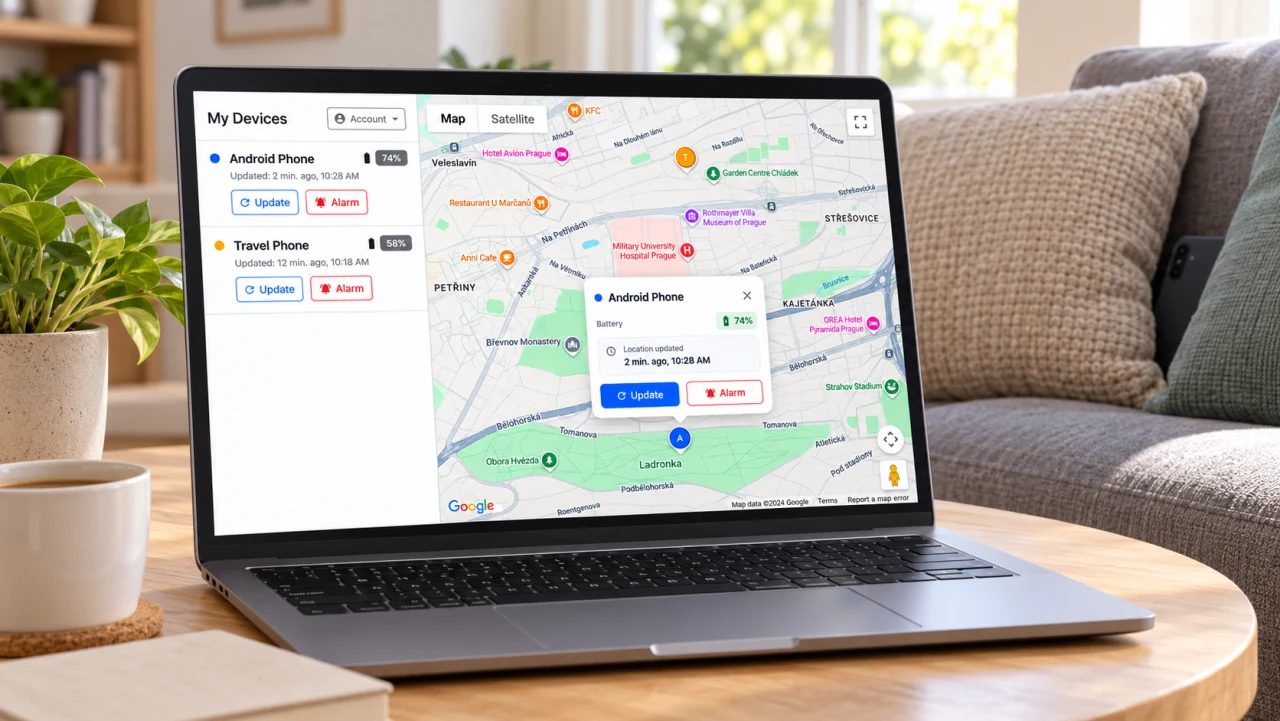
If you use Find My: Phone, Watch, Earbuds by MakeevApps, you can open its web portal on a computer, sign in with the account connected to your missing phone, and try to locate it or trigger an alarm. You do not need a second Android phone to access the portal.
Before you start: the app must already have been installed, signed in, and configured on the missing phone. To send a fresh location or play an alarm, the phone must be powered on and connected to the internet, and the app must have the necessary permissions. Opening the portal after a phone goes missing cannot set it up remotely.
What You Need Before You Can Find Your Phone
- A phone configured in advance. Find My: Phone, Watch, Earbuds must be connected to your account, with Global Search set up in the app.
- Access to that same account. Use the sign-in method you used in the app on the missing phone.
- A computer or another device with a browser and internet access. Open the portal in that browser.
- A phone that can respond. A fresh location needs the phone’s location access and an internet connection. Background restrictions or missing permissions can prevent updates.
If the app was never set up on the missing phone, this portal will not be able to locate it. If you still have your phone and are preparing for a future loss, start with the setup checklist at the end of this guide.
1. Open the Web Portal
On your computer, open the Find My Phone login page.
Use the account you connected in the app; simply having an Android phone does not automatically add it to this portal.
2. Sign In with the Same Account
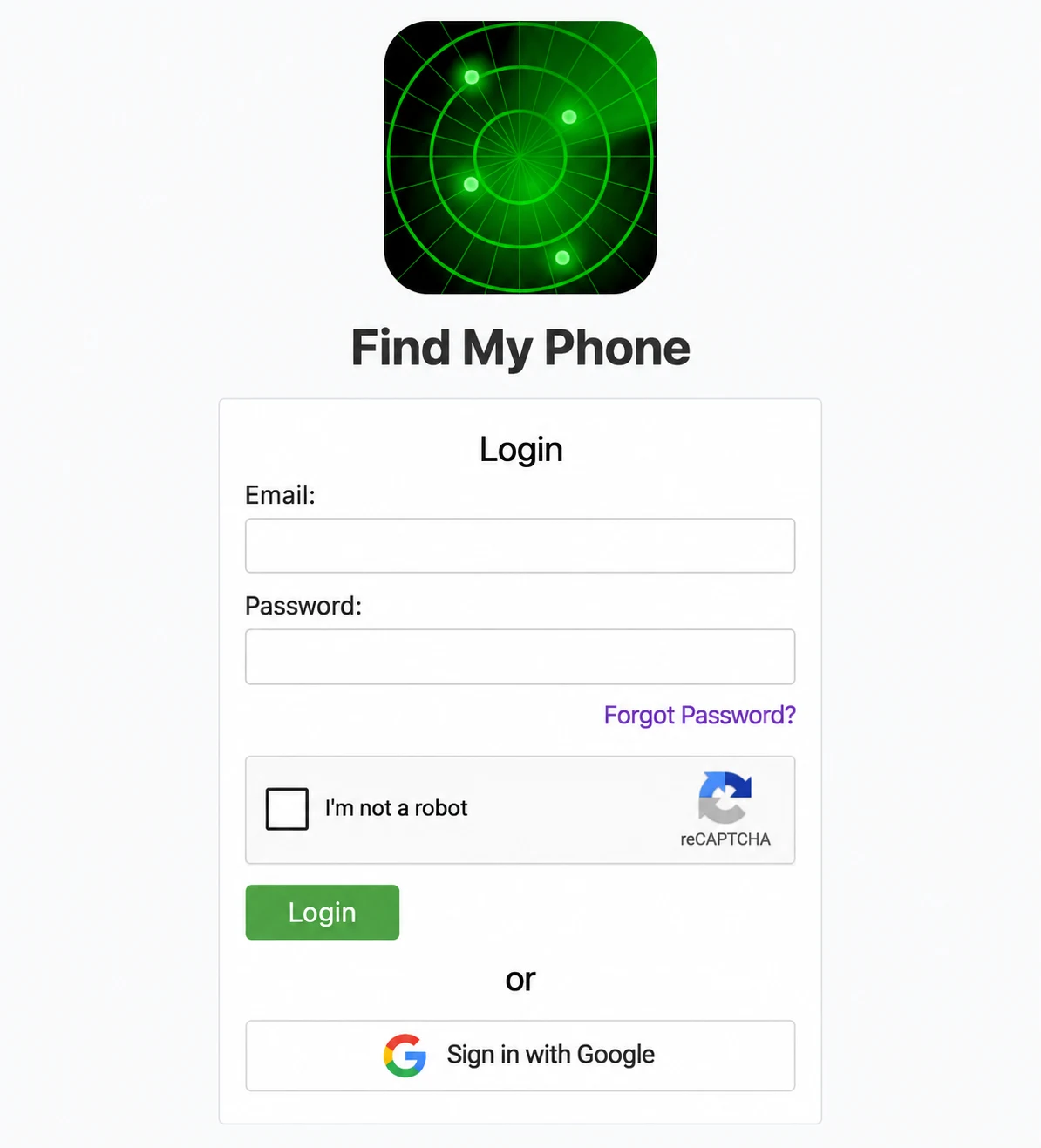
The login page offers email and password sign-in as well as Google sign-in. Choose the method you used in the app. For Google sign-in, check that you select the same Google account, especially if your browser has several accounts available.
If you use email and password, enter those details and complete the verification shown on the page before choosing Login. If you have forgotten that password, use Forgot Password? on the login page. For Google sign-in, continue through the Google sign-in option.
3. Find Your Phone in My Devices
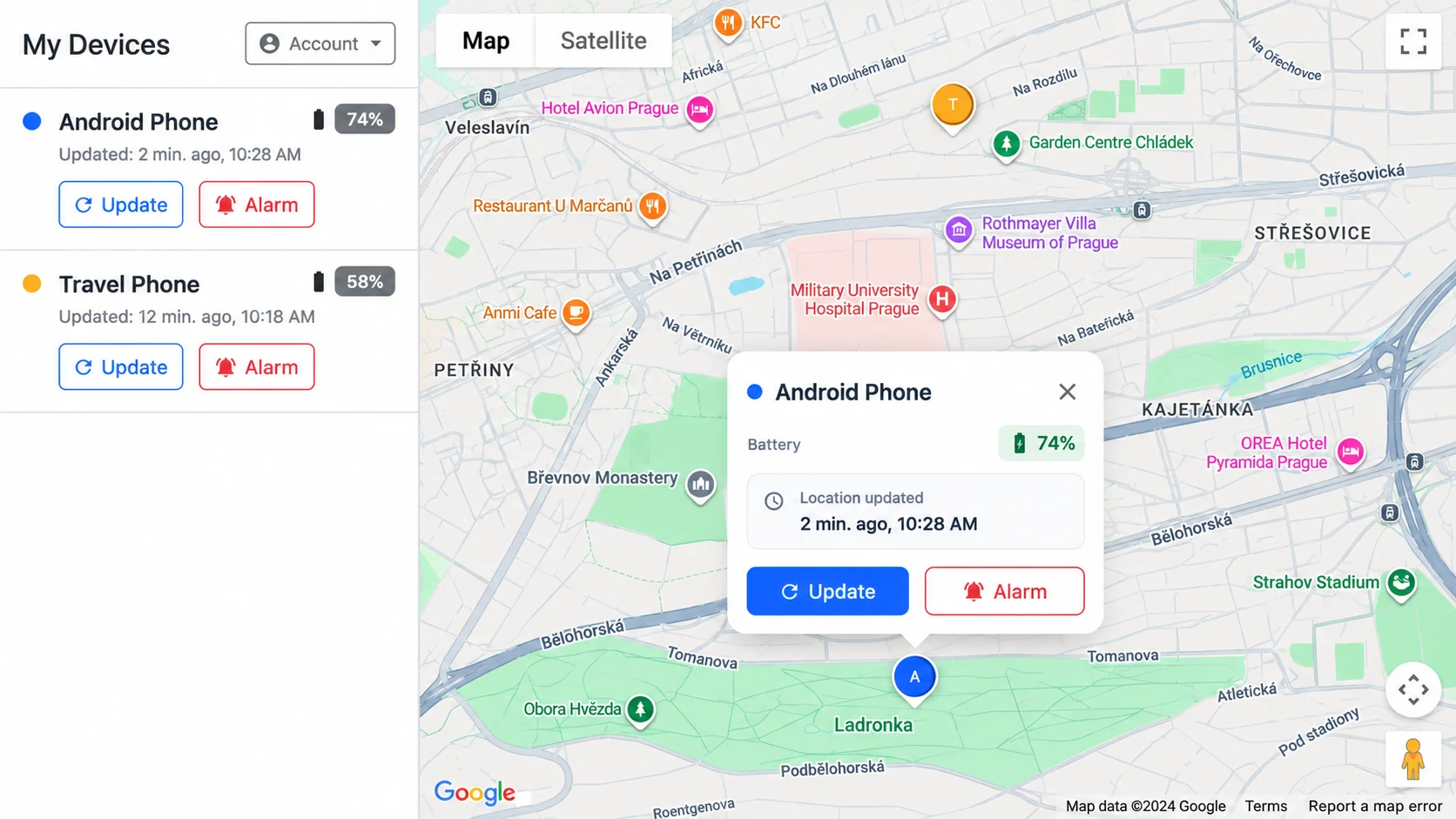
After signing in, look for your phone in My Devices. If you have connected more than one phone, identify the correct device before using its controls. By default, a device is listed by its model name. If you set a custom name for it in the app, that name appears in the portal instead.
The portal’s map view includes a device list, a location map, an Updated time in the list (or Location updated in the map popup), and Update and Alarm controls. Start by checking the update time. A marker on the map can represent an earlier reported location; it does not by itself prove that the phone is still there.
4. Request a Location Update
Use Update for the phone you want to find to request a fresh location. Give the phone time to respond, then check whether the Updated time has changed. If it has not changed, treat the displayed location as the last reported position rather than a confirmed current one.
Use the map to narrow down where to look. It may help you recognize your home, office, or somewhere you recently visited, but it cannot reliably identify a particular room, floor, or sofa cushion. Location accuracy depends on the information the phone can obtain.
5. Use Alarm If Your Phone Is Nearby
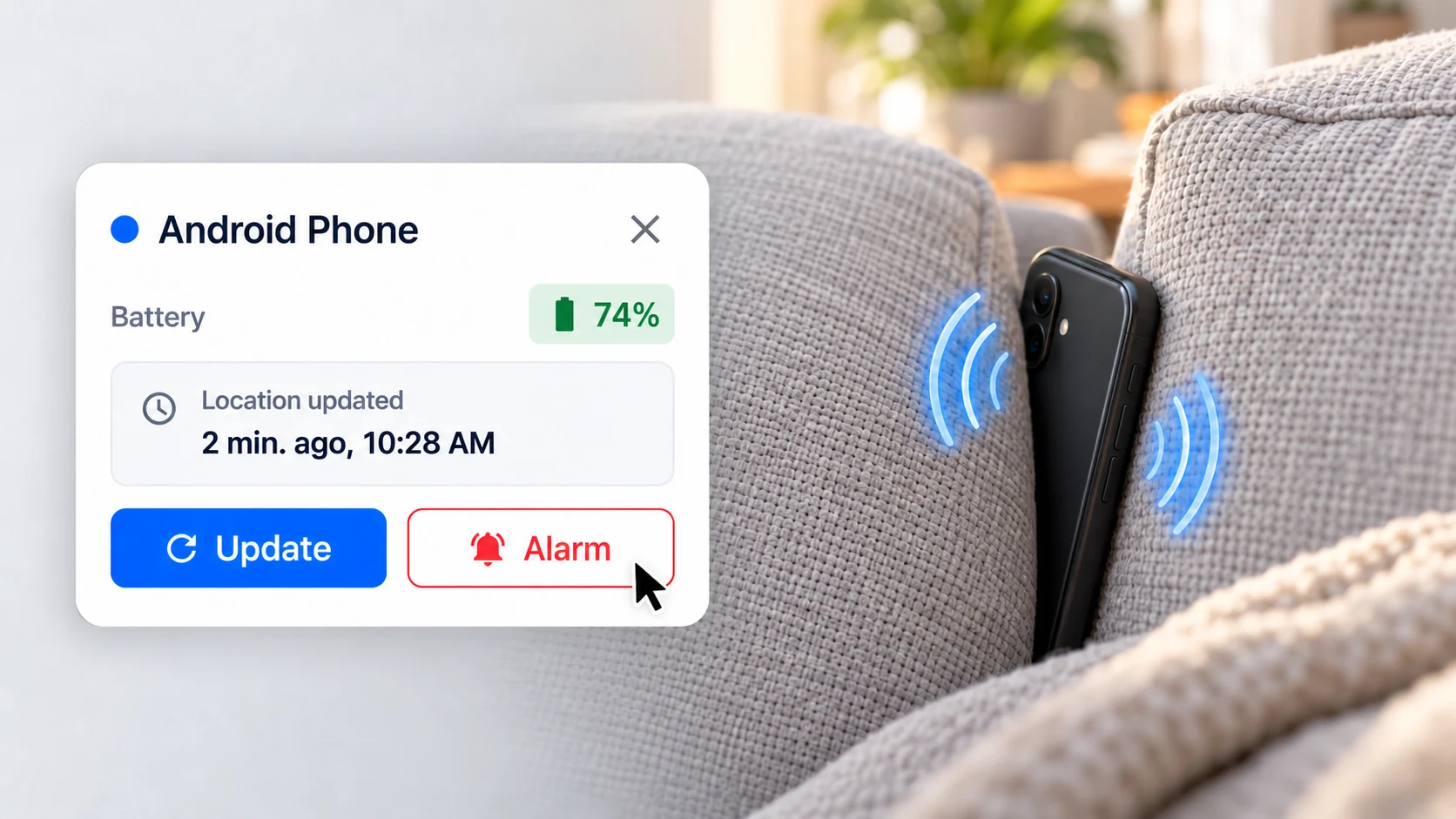
If the location suggests that the phone is close, use Alarm for that device to trigger a sound. The alarm sounds even when your phone is in silent mode. Then listen while checking nearby rooms, bags, coat pockets, and the spaces around furniture. A sound can help with the final part of the search when a map is no longer precise enough.
The alarm needs the phone to receive and act on the request. If you hear nothing, the phone may be offline, the app may not have been granted the necessary permissions, or the phone may simply be too far away to hear. Silence alone does not tell you where it is.
If Something Does Not Work
Why is my phone missing from the device list?
First check that you signed in with the account used in the app on that phone. Another email address or Google account may show a different set of devices. If the phone was never connected and configured, logging in on the computer will not add it now.
Why is the location not updating?
The phone may have no internet connection, be switched off, or have a drained battery. Location permissions and background restrictions can also prevent the app from responding. Keep the last reported position and its time in mind, and try again later if the phone may reconnect.
Can I find my phone if it is offline or out of battery?
The portal cannot get a new live location or ring a phone that cannot respond. If a previous location was saved and is available, it can still give you a starting point for retracing your steps. It is historical information, not confirmation of the phone’s current position.
What should I do if I cannot sign in?
Check both the account and the sign-in method. Use the password recovery link for an email-and-password account. If you normally use Google sign-in, use that option and select the correct Google account.
Set It Up Before You Need It
If your phone is still with you, a short practice run can help you check that the complete process works:
- Install and open Find My: Phone, Watch, Earbuds on your Android phone.
- Sign in and set up Global Search, following the app’s instructions for location access and background operation.
- Open the web portal on your computer and sign in with the same account.
- Check that your phone appears, request a location update, and try the alarm while the phone is nearby.
- Repeat the check with the phone’s screen locked to see whether it can respond during normal background use.
For additional ways to prepare, including Wear OS disconnect alerts and Bluetooth search, see How to Avoid Losing Your Phone, Earbuds, or Smartwatch.
When you finish on a borrowed or shared computer, choose Account > Logout and avoid saving your password in that browser.


